
Free audit · Read-only · No card required
See what your idle cloud VMs are burning
An idle audit is a free, read-only scan of your AWS or Google Cloud account. It reads the usage data the cloud already reports and prices the hours your instances sat idle over the past 30 days — per instance, worst offenders first.
Est. burned in 30 days
$802
across 5 instances idling nights & weekends
- r5.2xlarge est. $258/mo
- m5.2xlarge est. $197/mo
- c5.2xlarge est. $174/mo
- r5.xlarge est. $129/mo
- t3.large est. $43/mo
burning at est. $1.10/hr — $0.00 since you opened this page
Sample data · AWS list prices as of 2026-08-31. Your report is built from your own account.
Read-only
The audit never starts, stops, or changes anything in your account.
No card required
The audit is free. Paid plans exist only if you want the fixes automated.
Disconnect anytime
Remove the read-only role and Idlefy sees nothing.
Three steps to your number
-
Create a free account
Email or Google. No card, no sales call.
-
Connect your cloud read-only
AWS or Google Cloud, with a role that can look but not touch.
-
Scan and see the burn
One scan estimates what idle hours cost over the past 30 days — per instance, worst offenders first.
What you get back
The audit is the same report Idlefy shows paying customers, run once against your account. The full thing in the app, not a summary in your inbox.
One number for the whole account
Est. burned in the last 30 days across the standalone instances Idlefy does not already manage — the ones autostop could fix. Managed and auto-scaled waste are shown separately. Connect AWS and Google Cloud and the figure splits by provider.
Worst offenders first
Every instance with idle hours, ranked by estimated monthly waste, with its type and region. It's the list you forward to whoever owns those machines.
What autostop can't fix, kept apart
Instances in auto-scaling groups and Kubernetes node pools are listed separately and never counted as savings. Stopping a node the scheduler will replace saves nothing, so the report doesn't pretend it does.
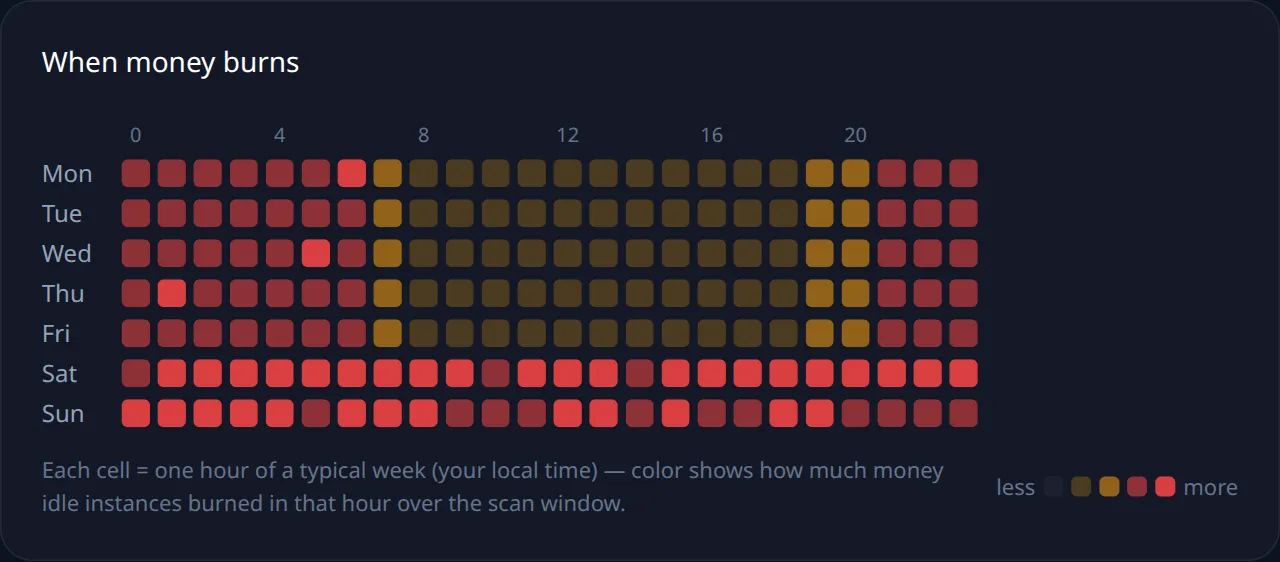
When the money burns
A map of a typical week in your local time. Each cell is one hour; the brighter the cell, the more idle machines burned in it. Most fleets glow on weeknights and weekends — exactly the shape a schedule can fix.
Sample data, no figures. Yours is drawn from your own account.
Read-only means read-only
The claims a security review will ask about, stated so you can check them in your own console.
- It reads.
- An inventory of your instances and the provider's own usage data for the last 30 days, in the regions you chose when connecting. Nothing is installed on your machines; nothing on them is read — no disks, no logs, no application data.
- It doesn't write.
- No start, stop, reboot, or tag. Idlefy's write actions are conditioned on a tag you set yourself; until you tag something, there is nothing for it to touch. On AWS that condition sits in the IAM policy — readable in your own console. On Google Cloud, where IAM can't scope by label, Idlefy only takes a VM under control if it carries the label when discovered — a check on our side, not a policy your cloud enforces, an honest difference worth knowing.
- Keyless by default.
- OIDC federation on AWS, Workload Identity Federation on Google Cloud: with this default setup no long-lived access keys are stored anywhere. Revoke the trust in your console and access ends immediately.
- Estimates, not invoices.
- Each idle hour is priced at the provider's on-demand rate for that instance type and region. Reserved instances, savings plans and negotiated discounts aren't applied, so your real figure may be lower.
- Big accounts.
- A scan covers up to 200 instances, running ones first, and the report shows how many it scanned out of how many it found.
Then it's your call
The report doesn't expire and doesn't nag. Three things people do with the number:
Keep watching
Re-run the scan once an hour per provider. A weekly email, on by default, tells you whether the burn went up or down; turn it off in the app if you'd rather not.
Fix it yourselves
Take the offender list to whoever owns the machines. Plenty of teams stop here.
Let Idlefy hold the line
Tag the machines you want managed. They stay stopped by default; a developer leases one for a session from Slack, Telegram or web, and it stops itself when the lease ends. That's the paid part — see how it works or compare plans.
Common questions
How accurate is the estimate?
It's an estimate. Idle hours are counted from 30 days of the provider's own usage data, and each hour is priced at the on-demand rate for that type and region. Discounts you've negotiated aren't applied, so your real figure may be lower.
What does Idlefy actually see?
An inventory of instances and the usage numbers the provider already keeps about them. Never what runs on the machines: no disks, no logs, no application data.
Does the audit change anything in my account?
No. Nothing is started, stopped, tagged or installed. The sample report on this page is made up; yours is built from your account and stays inside your organization.
Which clouds are supported?
AWS accounts (EC2 instances) and Google Cloud projects (Compute Engine VMs), in the regions you pick when connecting. Azure isn't supported yet.
What about Kubernetes nodes and auto-scaling groups?
They're scanned and shown in their own section, but never counted as savings: a stopped node just gets replaced by the scheduler. Kubernetes cost is handled through workflows that scale environments up and down, not by stopping nodes.
How long does a scan take?
Minutes for most accounts. A scan reads 30 days of usage for up to 200 instances; a large account can take longer and comes back marked partial rather than timing out. You can re-run once an hour per provider.
How do I disconnect?
Remove the role or trust in your own console and Idlefy's access ends immediately. The setup pieces stay until you delete them — on AWS the IAM role and OIDC provider, on Google Cloud the workload identity pool, service account and custom role — and none of them can do anything without that trust.
Is it really free?
Yes. The audit is included on every plan, including Free, with no card. Paid plans exist for automated autostop, not for seeing the number.
More edge cases are covered in the FAQ.
The sample above is made up. Yours isn't.
One read-only scan, one number. Then decide what to do about it.
Run the free audit →